Practical access help for members aged 50+

Using SilverSingles UK in the Way That Works for You

Start with the task that has stopped you: signing in, changing your profile, reviewing recommendations, writing a message, completing photo verification or managing membership settings. The guidance below tells you what is supported on this information site, what remains untested and what detail helps support reproduce the problem.

The report link opens contact guidance. This website does not publish a local support form or accept account credentials.

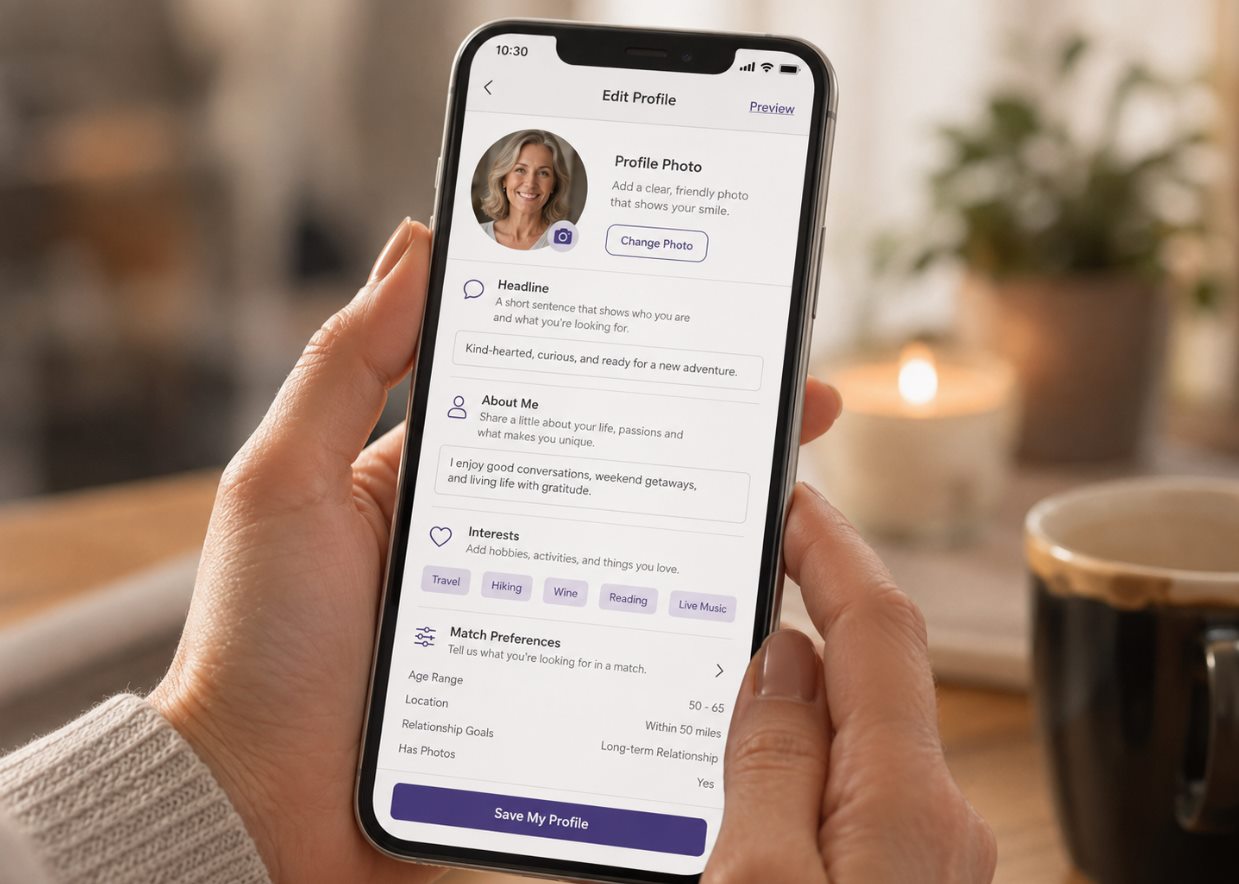
Hands holding a smartphone displaying a profile editing screen

Know which site you are using

This guidance covers two different experiences

silversinglesuk.uk is an information website. Its navigation, articles and contact guidance can be inspected here. Registration, account access, recommendations, messaging, verification and membership controls continue in the SilverSingles service where an account was created.

Those member screens are not part of this website’s code, so this page does not claim that every control works with every browser or assistive technology. When an account task fails, record the service screen as well as the device you are using.

One careful attempt before reporting

Keep your work and isolate the inaccessible control

The aim is not to repeat the whole journey. Preserve what you have entered, identify the first control you cannot use and note what happened next.

01 · Account access

Create an account or sign in

  1. Move through the fields in order with Tab and back with Shift + Tab. Do not rely on colour alone to identify an error.
  2. If focus returns to the top after submission, read the page heading and error summary before entering details again.
  3. Record the field label and exact error text. Never include your password or one-time code in a report.

02 · Profile

Edit text or upload a photo

  1. Write longer profile text in a separate document first, then paste it into the field. This protects your wording if the screen closes or does not save.
  2. After choosing Save, check for a visible confirmation before leaving the screen.
  3. If a photo crop or upload control cannot be reached, report whether selecting the file worked and name the next control that stopped you.

03 · Recommendations

Review a profile without losing your place

  1. Use one navigation method at a time. With a keyboard, move forward with Tab and listen or look for the visible focus position.
  2. If new profile content appears but focus stays on an old control, stop and note the last profile detail announced or visible.
  3. Report any action that is available only by swiping or dragging, including the label shown beside it.

04 · Messages

Keep a draft before sending

  1. For a longer first message, compose it outside the service and paste it into the message field.
  2. Activate Send once, then check the conversation for the new message before trying again.
  3. If a new reply is not announced or keyboard focus jumps, record the conversation position and the control used immediately beforehand. Do not copy private message content into a public screenshot.

05 · Verification

Pause when the camera process is not workable

  1. SilverSingles states that coloured lights are used during photo verification. Stop before starting if changing light may affect you.
  2. If holding the device, seeing the guide or following a movement prompt is not possible, do not make repeated attempts.
  3. No alternative method is documented in the current project material. Ask account support whether there is an accessible way to complete the photo check before sharing any media.

06 · Membership and settings

Review the final state before confirming a change

  1. Increase browser zoom before opening settings if small labels or closely spaced controls are difficult to read.
  2. Read the selected option, renewal wording and final confirmation control before proceeding. Stop if focus order makes the selected state unclear.
  3. For a payment-stage problem, note the screen and error only. Do not send a full card number or a screenshot containing payment details.

Keyboard and screen-reader use

Move through this information site without a mouse

Tab
Move to the next link, button or expandable answer.
Shift + Tab
Move to the previous interactive control.
Enter
Open the focused link or activate the mobile menu button.
Space
Activate a focused button or open a focused FAQ answer.

The first focusable link skips the header and goes to the main content. Headings and navigation landmarks are present in the source. No screen-reader and browser combination has yet been recorded as tested, so the page does not promise a particular announcement order.

Use the controls already on your device

Make text and movement easier to manage

There are no decorative accessibility switches on this website. Use browser and operating-system controls that affect the whole experience.

Enlarge text and pages

Use the browser menu’s Zoom control. On Windows, Ctrl + + enlarges the page and Ctrl + 0 restores the default. Browser zoom is not disabled here, but a full review at 200% has not been recorded.

Increase contrast

Use the contrast, colour-filter or dark-mode setting provided by your device or browser. This website does not add a second colour theme, and not every forced-colour state has been checked.

Reduce movement

If your device is set to reduce motion, this site removes transitions and smooth scrolling. The separate SilverSingles member service may respond differently because it is not controlled by this website.

Allow more time

This information site has no timed forms. Time limits inside registration, payment or verification screens are not documented here. Prepare longer text before opening the account screen and report any warning that does not give enough time to respond.

Evidence, not blanket promises

What has and has not been checked

This record applies to the public information page source reviewed on 9 September 2026. It does not cover signed-in account screens.

Accessibility review status for silversinglesuk.uk
AreaStatusEvidence or limitation
Page structureConfirmed in sourceOne main heading, labelled navigation, a main landmark, semantic links and native expandable answers are present.
Keyboard focusConfirmed in sourceA skip link and visible focus styles are present. Full end-to-end member tasks were not run.
Reduced motionConfirmed in sourceThe shared stylesheet removes transitions and smooth scrolling when the preference is enabled.
Screen readersNot testedNo named screen reader, browser, operating system or device combination is recorded.
Text zoom at 200%Not testedZoom is not disabled, but layout and task completion have not been verified at 200%.
Member account serviceOutside this siteRegistration, profile, recommendation, message, verification and membership interfaces are supplied by the separate account service.

Current limitations and workarounds

Check these before repeating the task

These are confirmed scope or source limitations, not a claim that every user will encounter them.

Mobile menu has no Escape-key action

Use the same menu button to close it, or follow a navigation link.

Affects
Keyboard navigation on a small screen
Status
Confirmed in current script
Reviewed
9 September 2026

No accessibility report form is published here

Use the contact guidance to identify the support route connected with the account. Do not send private credentials or documents.

Affects
Submitting a problem report
Status
Local contact endpoint not published
Reviewed
9 September 2026

No documented alternative to camera verification

Pause the camera task and ask account support which supported option is available before trying again.

Affects
Members unable to complete the standard camera flow
Status
Alternative method not documented
Reviewed
9 September 2026

Make the problem reproducible

Send the smallest useful accessibility report

A report is most useful when another person can follow the same path and reach the same blocked control. Describe what you were doing immediately before the problem, not your medical history.

Open Contact Guidance

Include

  • The task and page or screen name
  • The link, field or control that stopped you
  • What you expected and what happened instead
  • Device, operating system, browser or app version
  • Screen reader, magnifier, voice control or other technology used
  • Approximate date and time, plus a privacy-safe screenshot if useful

Leave out

Passwords, one-time codes, identity documents, medical documents, full card numbers and private conversations.

Clear answers within the evidence

SilverSingles accessibility questions

Can I use SilverSingles UK without a mouse?

The public information site uses standard links, buttons and expandable sections, and includes a skip link. The separate member service has not been keyboard-tested by this website, so report the exact account task and control if you become stuck.

Has SilverSingles UK been tested with screen readers?

The information site has semantic headings, navigation landmarks and labelled controls, but no screen-reader and browser combination is currently recorded as tested. Account-area compatibility is also not verified here.

Can I enlarge the text?

Browser zoom is not disabled on this information site. Use the zoom control in your browser or Ctrl + + on Windows. A complete 200% zoom review has not yet been recorded.

Is there another way to complete photo verification?

A supported alternative to the camera process is not documented in the current project material. Contact the support route connected with your account before making repeated attempts.

What should I include in an accessibility report?

Name the task, page or screen, control, device, browser or app, assistive technology and exact result. Do not send a password, one-time code, identity document, medical document or full card number.

Tell us which task you could not complete

Name the first control that stopped you and the technology you were using. Leave passwords, codes and private documents out of the report.